
Platforms
How to Add Subtitles to YouTube Shorts
29 October 2026 · 7 min read · CaptionFy team
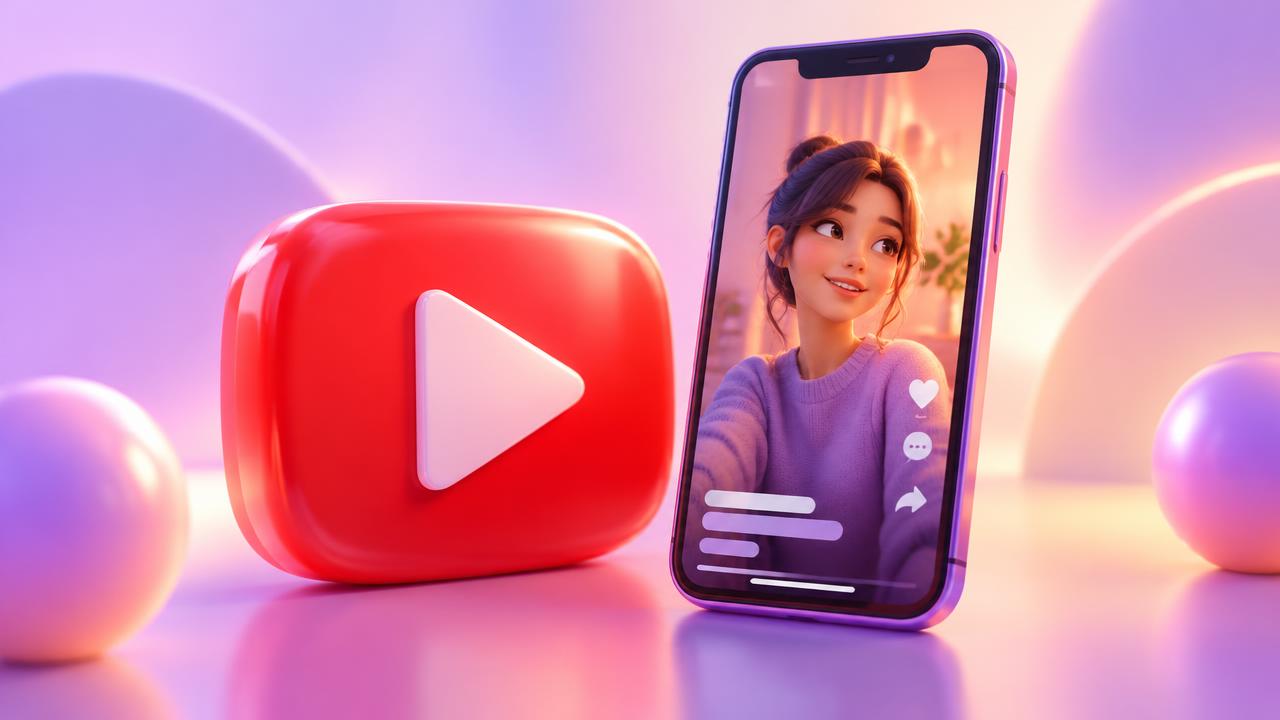
YouTube Shorts plays in a vertical feed with its own overlay of buttons and titles. Subtitles help viewers follow along and stay for the full loop. Here are your options.
YouTube's automatic captions
YouTube can generate automatic captions for many languages. Viewers can switch them on with the CC control. They are useful for accessibility, but they are plain, not always enabled by default, and you cannot style them.
Burned-in subtitles for Shorts
Most successful Shorts use burned-in subtitles: bold text in the frame that is always visible. You add them before uploading, so you control the font, colour, animation and position.
Placement for Shorts
Shorts places the title, channel name and subscribe button along the bottom and action buttons on the right. Keep subtitles above the bottom fifth of the frame and away from the right edge.
Repurposing long videos into Shorts
If you cut Shorts from a long video, caption each Short separately after cutting. That keeps timing exact and lets you highlight the key phrase of each clip.
The short version
Burn in styled subtitles for impact, keep them inside the safe area, and caption each Short after the final cut.
Try CaptionFy free
Caption a real clip with your free credit — no card needed.